Daily
The Daily Schedule template allows users to trigger a rule or workflow every day at specific times. This is useful for routine data checks, regular monitoring workflows, or ongoing validation tasks.
How To: Create a Daily Schedule
- Navigate to the Scheduler module.
- Select the Schedules tab to create a new schedule.
- Click New Schedule.
- Configuring schedule settings:
- Select Folder: To search for and select the appropriate workspace folder where the schedule will be stored.
- Input Schedule Name: Enter a descriptive and unique name to identify the schedule within the selected folder.
- Choose Template: Select the Daily template.
- Provide the following details:
| Field Name | Description |
|---|---|
| Description (Optional) | A short explanation giving business or technical context. |
| Start Date | Use  and and  to select the start date and time. to select the start date and time. |
| End Date (Optional) | Use and to set when the schedule should stop running. |
| Holiday Calendar (Optional) | Enable and select a predefined holiday calendar to skip execution on holidays. |
| Reoccur (Optional) | Set the interval in days between runs (e.g., every 2 days). |
| Hours and Minutes | Select the hours and minutes when you want the jobs to run. Multiple values can be selected. |
- In the Jobs tab, add the workflows to be triggered. Follow the below steps:
- Filter workflows by selecting specific folders using the ✔️ Checkmark icon.
- Use the
 button to search and add one or more workflows.
- Click Save to create the schedule.
- Once saved following options will be displayed:
- CRON Expression: The scheduler details selected above are converted to a CRON expression.
- Next Run: Displays the date and time of the next scheduled execution.
- Run As: Displays the username under which the jobs will be executed.
The following screenshot shows the fields in the Daily Schedule:
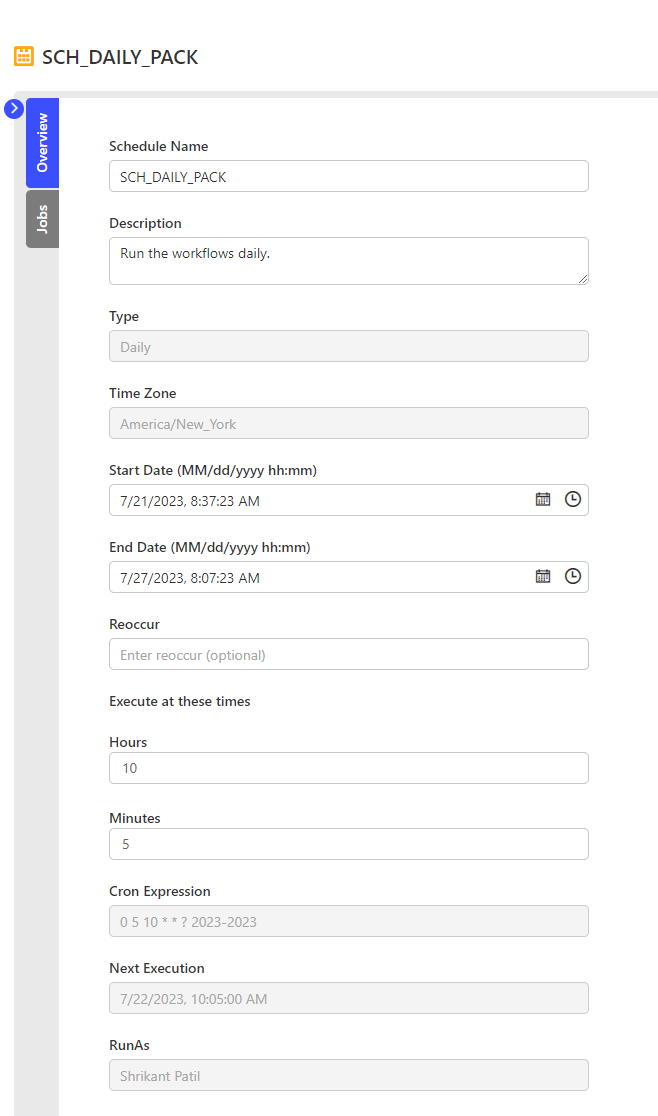
Example Schedule
If you select the following:
- Hours:
0, 6, 12, 18 - Minutes:
0, 30
Then jobs will run at:
- 12:00 AM
- 12:30 AM
- 6:00 AM
- 6:30 AM
- 12:00 PM
- 12:30 PM
- 6:00 PM
- 6:30 PM
Video Guide
This video shows how to create a Daily Schedule.
Considerations
- Schedule names can include alphanumeric characters, hyphens (-), periods (.), at signs (@), spaces, and underscores (_).
- Each schedule name must be unique within a folder.
- Run As displays the user who created or last updated the schedule.
- You can pause a schedule using the Pause button.
- You can resume a paused schedule using the Resume button.
- Use the Run button to manually trigger the schedule. If the schedule is paused, the Run button is disabled.